Prompts · AI images
Nano Banana Prompts: 17 Copy-Paste Examples and Use Cases
By Bolly teamPublished 10 min read
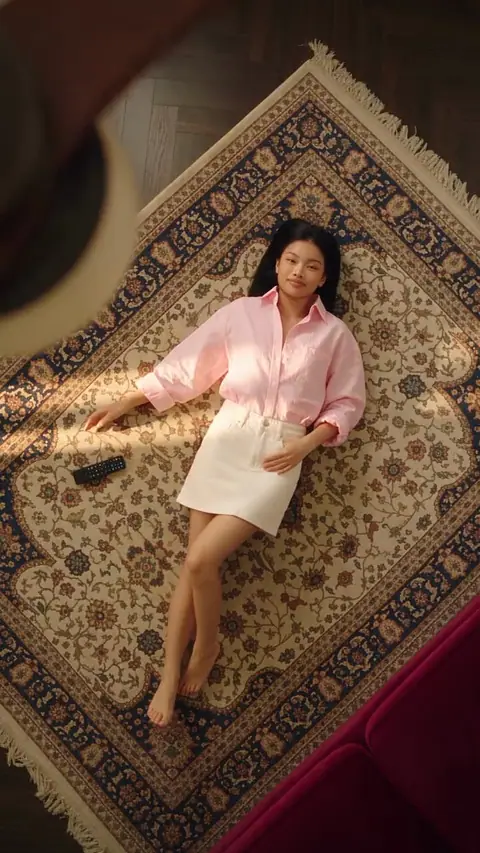
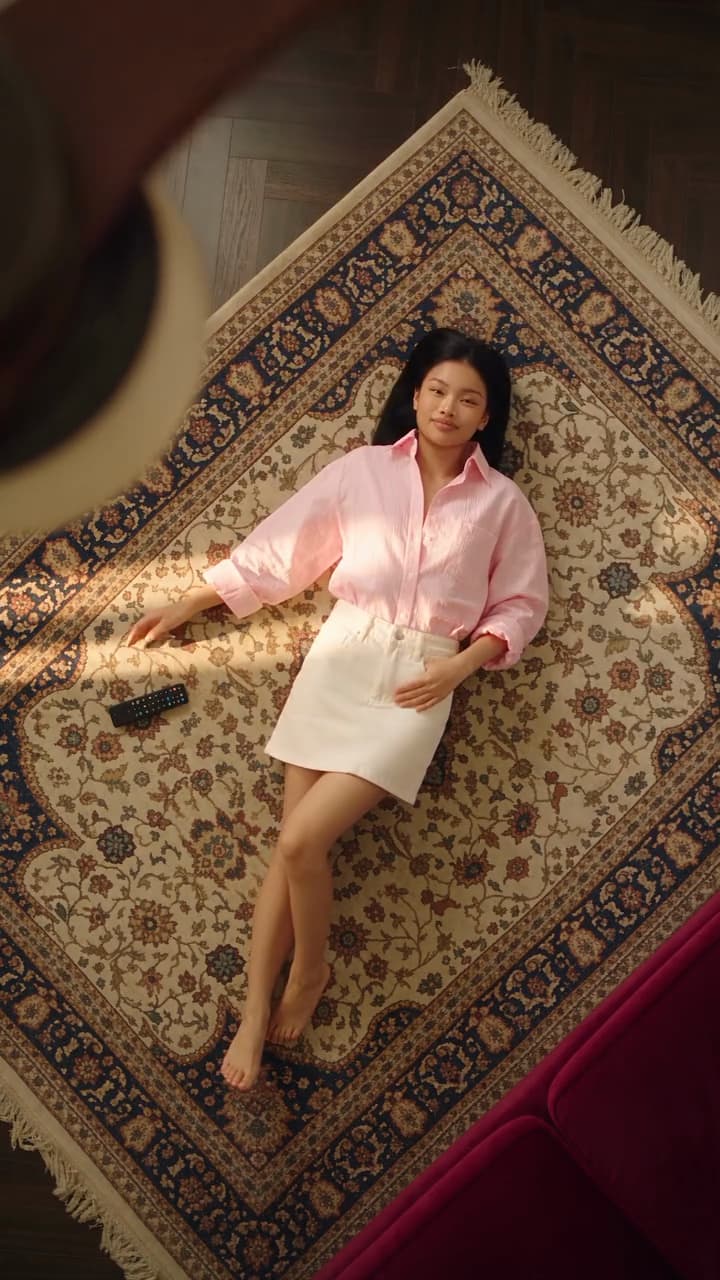
Nano Banana prompts are plain-language instructions for Nano Banana 2, the image model that generates pictures and edits photos you attach. Below are 17 original prompts to paste into it on Bolly, each with the image to attach, plus what a run costs and how to fix drifting faces and misspelled text.
What Nano Banana 2 is on Bolly
Bolly's catalog lists Nano Banana 2 as Google's fast image generation and editing model, with text rendering and subject consistency among its strengths. It has two modes: Generate makes an image from words alone, and Edit changes photos you attach, several at a time. Attach an image and the composer switches from Generate to Edit for you. Nano Banana 2 Lite is the lightweight version for drafts and thumbnails, and it only generates.
Note: Looking for Nano Banana Pro?
Bolly runs Nano Banana 2 and Nano Banana 2 Lite, not Nano Banana Pro. These prompts are written for those two, so we can't say how they read in Pro.
How to use Nano Banana on Bolly
Open the model page
Go to Nano Banana 2 and sign in if asked. The prompt box is on the page, and the model runs on the Free plan.
Attach a photo, or don't
For an edit, attach your image; attach several for a blend. For a new picture, attach nothing and stay in Generate.
Paste a prompt
Copy one from below and swap in your details. Say what to change and what must stay the same.
Pick size and count
Choose an aspect ratio, a resolution from 0.5K to 4K and 1 to 4 images. The composer shows the credit price before you run.
Run it, then refine
Results land in your Library. Press Reuse prompt on a result to put its prompt back in the box, change one detail and run again.
What goes in a good prompt
Most prompts below follow one order: subject, action, setting, style, constraints. Write it as one or two sentences, the way you would brief a photographer.
- Subject: who or what is in the picture, with two or three concrete details.
- Action: what they are doing, or what should change.
- Setting: place, time of day and background.
- Style: the medium or camera look, such as 35mm film, watercolor or studio flash.
- Constraints: what must stay the same and what must not appear.
A [style] of [subject] [action] in [setting]. Keep [what must stay the same]. Do not include [what to leave out].
Editing prompts vs generation prompts
A generation prompt has to describe the whole picture, so it needs every part of the formula. An editing prompt starts from your photo, so it needs only the change plus a line that locks the rest, such as "keep the face, pose and lighting unchanged". When you attach several images, refer to them in the order you added them: "the first image", "the second image".
17 Nano Banana prompts by use case
Warning: Photos of real people
Attach only photos of yourself or of people who have clearly agreed to be edited, and never a photo of anyone under 18. Label realistic edits as AI-generated when you share them, and don't remove watermarks or labels. Only attach images and styles you have the right to use. On the Free plan, generations are public and can be featured in Explore; private generations need a paid plan. Read the consent, labeling and other people's work rules first.
Edit a photo you attach
Attach one photo for each of these. Retouching and restoring can invent detail, so compare faces with your original. Bolly also has single-purpose image tools for background removal, object removal and upscaling.
Retouch this portrait for a professional profile photo. Even out the skin tone and remove stray hairs and small blemishes, but keep pores, freckles and the natural look. Brighten the eyes slightly. Keep the face, expression, pose and clothing exactly the same.
Change the outfit in this photo to a navy linen blazer over a white t-shirt and dark jeans. Keep the face, hair, pose, background and lighting exactly the same, and make the fabric folds and shadows match the rest of the scene.
Give the person in this photo a shoulder-length bob with a side part, in the same hair color. Change only the hair. Keep the face, skin tone, expression, clothing and background unchanged, and blend the hairline naturally.
Replace the background of this photo with a sunlit street cafe terrace, with softly blurred tables behind. Keep the person exactly as they are, with clean edges around the hair, and match the light and color of the new background to the subject.
Remove the [object, for example the red bin on the right] from this photo and fill the space with what would naturally be behind it, matching texture, lighting and perspective. Leave everything else exactly as it is.
Restore this old photograph: remove scratches, dust and creases, repair the faded contrast, and sharpen the faces without changing anyone's features or expression. Keep the original tones and film grain.
Products and marketing
A sharp, well-lit product photo gives the model more to keep intact. Bolly's Product Photoshoot app runs Nano Banana 2 in Edit mode with a product-shot prompt already built in.
Turn the attached product photo into a clean e-commerce shot: the product centered on a plain white background with a soft natural shadow underneath. Keep the product's shape, color, label and logo exactly as photographed, and add no other objects.
Place the attached product on a marble kitchen counter beside a window, lit by soft morning light from the left, with a folded linen towel and a blurred plant behind it. Keep the product exactly as photographed, with realistic shadows and reflections. Styled like a magazine ad.
Make a 3x3 grid showing the attached product from nine different angles on a light gray studio background: front, back, both sides, top, three-quarter views and one close-up of a detail. Use the same lighting and framing in every cell and keep the product identical in all nine.
A vertical concert poster for a jazz night. The headline in bold cream letters reads exactly "MIDNIGHT JAZZ", with the smaller line "Live at the Blue Room, doors 8pm" beneath it. Dark blue background with a saxophone in warm gold line art. Clean layout, wide margins, no other text.
A clean infographic titled "How Coffee Gets to Your Cup" with four numbered steps in a horizontal row: 1 Grow, 2 Roast, 3 Grind, 4 Brew. One simple flat icon above each step, short labels only, warm brown and cream palette on a white background, everything aligned and easy to read.
Styles, figures and characters
Attach the same reference image on every run that should keep the character. Bolly's Miniature Portrait app (you as a collectible figure in a diorama) and Character Sheet app cover similar ideas with the prompt already built in.
Redraw this photo as a soft watercolor illustration with visible paper texture and loose brush edges. Keep the composition, the people's likeness and the main colors recognizable. No text and no border.
Redraw the first image in the visual style of the second image: the same color palette, line quality and texture. Keep the first image's subject, layout and proportions exactly, and do not copy any content from the second image.
Turn the person in this photo into a 1/7-scale collectible figurine standing on a round black base, on a desk beside a printed box that shows the same character artwork. Keep the face, hairstyle and outfit recognizable. Glossy paint, soft studio light, shallow depth of field.
Create a character sheet of this character on a plain light background: full-body front, side and back views in a row, plus three head close-ups with different expressions. Keep the face, hair, outfit and colors identical in every view. Add no text.
Show this same character sitting on a night train, looking out of the window at the city lights, with a paper coffee cup in one hand. Keep the face, hairstyle, clothing and art style identical to the attached image. Cinematic lighting, medium shot.
Quick drafts on Lite
Lite can't take an attachment, so it suits ideas you can describe in words. Test a layout or headline for 2 credits, then run the final on Nano Banana 2.
A wide video thumbnail: a surprised cartoon fox holding a huge glowing key, bright yellow background, the words "FOUND IT!" in big white letters with a black outline, high contrast, empty space on the right for a title.
Fixing common misses
- The face drifts. Add a line naming what must stay ("keep the face, hair and expression exactly the same"), change one thing per run and start from a sharp, front-facing photo. Results vary between runs, so try once or twice more before rewriting.
- The text comes out wrong. Put the exact words in quotes, keep them short, say where they go and add "no other text". If one word is still off, run again or spell it out letter by letter in the prompt.
- It changed too much. Name the one change, then add "keep everything else exactly as it is".
- Part of the prompt was ignored. Shorten it, put the most important instruction first and split a big edit into two runs, such as the background first and the outfit second.
- The style looks generic. Name a medium or camera look ("35mm film", "gouache", "studio flash") instead of "beautiful" or "high quality".
- The shape is wrong. Set the aspect ratio in the composer (Auto, 1:1, 4:5, 9:16, 16:9, 21:9 and more) before you run.
What a Nano Banana run costs
The composer shows the price before you run. Nano Banana 2 charges per image, by resolution:
- 0.5K: 3 credits
- 1K (the default): 4 credits
- 2K: 5 credits
- 4K: 7 credits
- Nano Banana 2 Lite: 2 credits
Bolly's pricing page values a credit at about $0.05, which puts a 1K image at about $0.20, though your real rate depends on your plan or pack. Batches can cost a little less per image: four 1K images in one run cost 13 credits, not 16. A run that fails or is refused by the model is refunded automatically.
Both models run on the Free plan, which includes 10 credits a day: two 1K images with Nano Banana 2 (8 credits) or five with Lite. Starter ($19 a month) includes 300 credits, or 75 single 1K images. Compare all plans on the pricing page.
Where to go next
Once an image works, animate the photo into a short clip, or line up several images in a storyboard. To compare other tools, see the best AI photo editors and the best AI image generators. Or paste the first prompt into the Nano Banana 2 page and see what comes back.
Frequently asked questions
Is there a free Nano Banana or Nano Banana Pro?
Bolly runs Nano Banana 2 and Nano Banana 2 Lite on its Free plan, a daily allowance of 10 credits with public generations, so you can try both without paying. It doesn't run Nano Banana Pro, so we can't say what Pro costs or whether it has a free tier.
What's the difference between Nano Banana 2 and Nano Banana 2 Lite?
Nano Banana 2 generates and edits attached photos, and offers resolutions from 0.5K to 4K. Lite only generates from text, has no resolution setting and costs 2 credits an image, which suits drafts and thumbnails.
Is there a Nano Banana prompt generator?
Not a separate tool. The fill-in formula above works as one, and Bolly's apps, such as Product Photoshoot, already contain a Nano Banana 2 prompt, so you only add a photo and describe the scene.
Can I turn a Nano Banana image into a video?
Yes. Attach the image to an image-to-video model; video isn't included in the Free plan. How to animate a photo walks through it.
Can I use Nano Banana images commercially?
Bolly's Terms say that, as between you and Bolly and as far as the law allows, you own your outputs, but they don't promise the outputs are protectable or unique. Some models also carry their developer's terms, such as limits on commercial use, which apply when Bolly shows them. Check the Terms, and make sure you have the rights to every photo you attach and permission from everyone in it.
Try the Fan Outfit Transition template
Upload a photo and Bolly swaps you into the clip. Mix comes with every paid plan, from Starter at $19 a month, and failed runs are refunded automatically.
More from the blog
How-to
How to Make AI Videos: From Text, a Photo or a Clip
Make an AI video from text, a photo or a template clip. Pick a model, copy four prompts, add sound and export, with the real credit cost of each model.
· 9 min read
How-to
How to Animate a Photo With AI: Steps, Prompts and Costs
Animate a photo with AI: prepare the picture, pick a model, copy five motion prompts for portraits, pets and old photos, and see what each clip costs.
· 7 min read
AI video pricing
AI Video Generator Pricing: What a Clip Really Costs (2026)
What AI video costs in 2026: Bolly credits per model for 5 s and 10 s clips, plan rates, clips per month, and how Runway and Higgsfield credits compare.
· 8 min read
How-to
How to Make a Face Swap Video of Yourself (Step by Step)
How to make a face swap video of yourself with Bolly Mix: photo tips, clips to start with, credits per run, fixes when it slips, and the consent rules.
· 8 min read