How-to · AI video
How to Make AI Videos: From Text, a Photo or a Clip
By Bolly teamPublished 9 min read
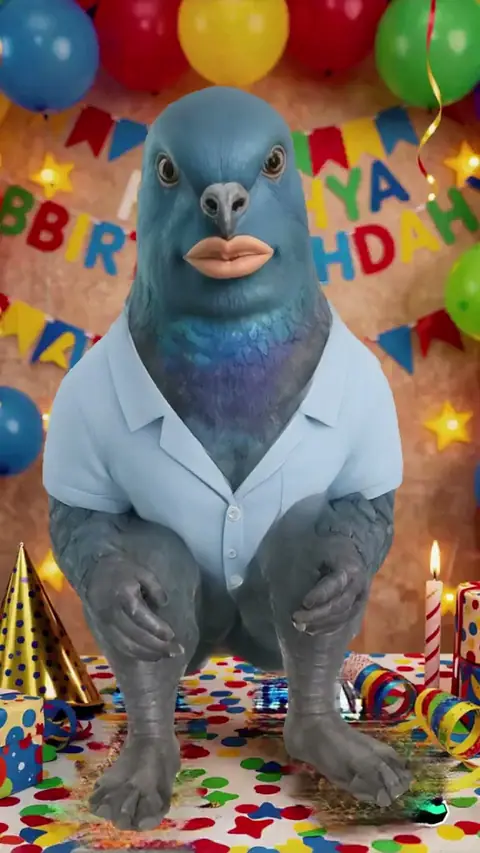
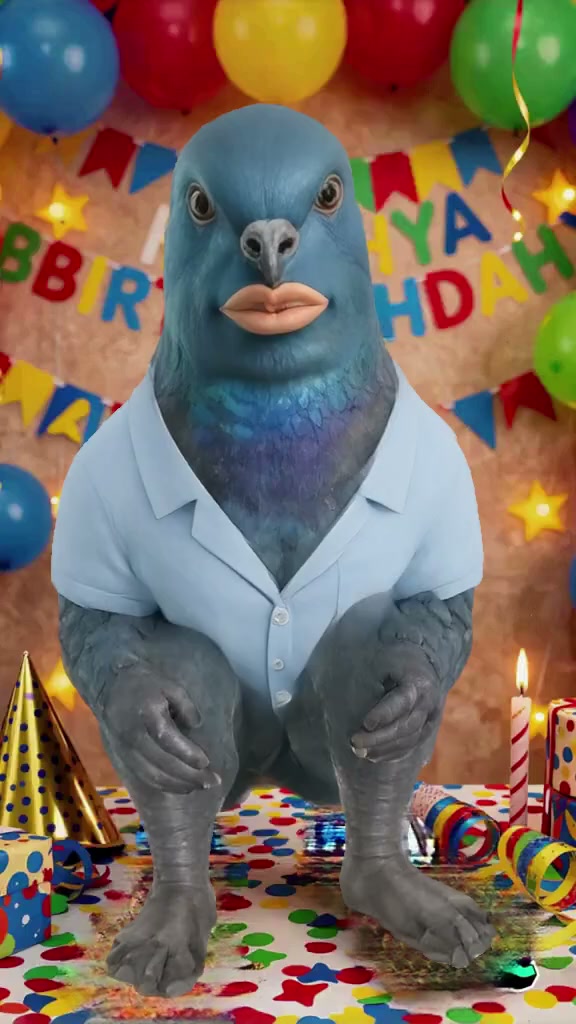
How to make AI videos: pick a route (text, photo or clip), choose a model, describe the motion in a sentence or two, press Generate, then add sound and export. On Bolly, video starts on the Starter plan at $19 a month, and a 5-second photo clip can cost as little as 6 credits.
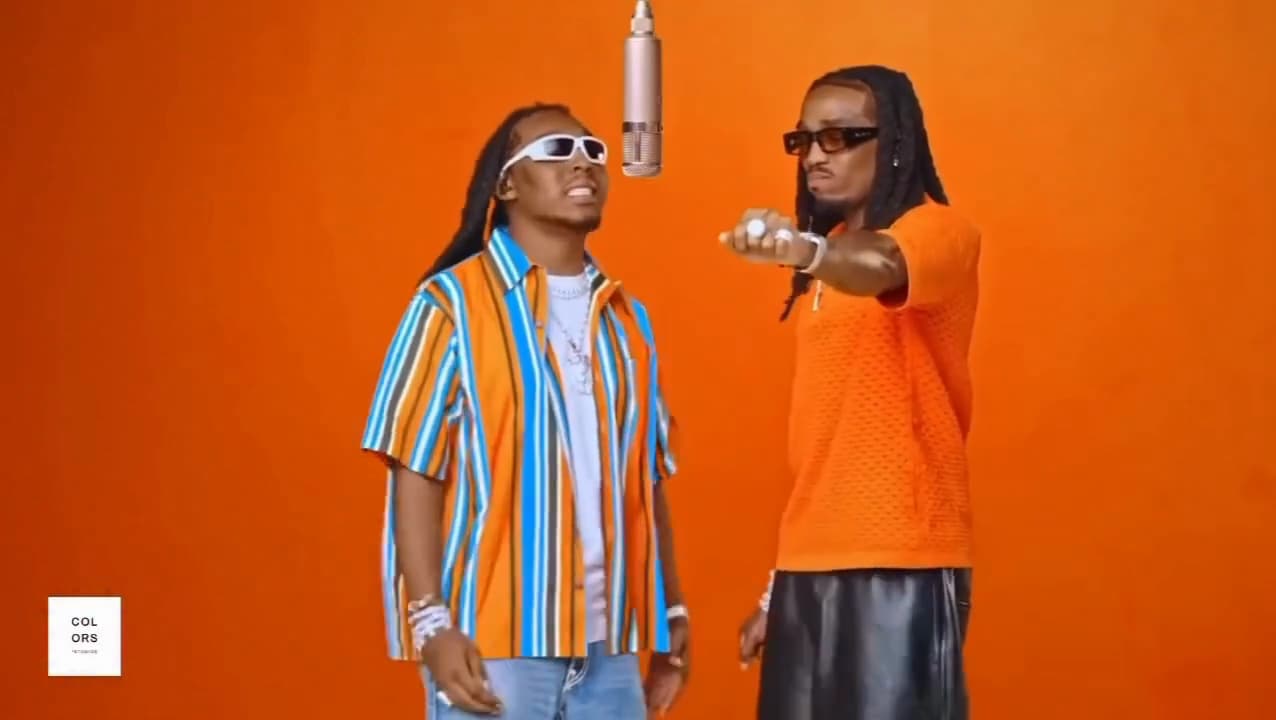
This guide shows how to create AI video all three ways, with the model to use at each budget, four prompts to copy, sound, fixes and costs. The clip at the top of this page is a Mix template, the third route.
Three ways to make an AI video
- Text to video. You write the scene and the model invents the rest: subject, place, light and camera. Open a model page and set the Mode chip to "Text to video". This is the text to video AI route, or an AI video generator from text, for scenes with no source picture.
- Photo to video. You attach a picture and describe how it should move. This is how to make AI videos from a picture, for when a person, product or place has to look like your photo. More in how to animate a photo.
- Clip to clip, with Mix. You pick a template clip and swap yourself in with one or two photos. The clip supplies the motion and camera work, so you have none to describe. Mix comes with every paid plan.
Which model to use, by goal and budget
Price depends more on the model than on the route. These are credits for a 5-second photo clip at default resolution. Every model here also has a Text to video mode, which can cost more (Luma Ray 3.2 is 20 credits, not 6).
- Cheapest way to test an idea (Starter). Luma Ray 3.2, 6 credits at 540p; PixVerse V6, 12 at 720p; MiniMax H3 Max, 16 at 768P. PixVerse's audio switch is off by default (14 credits with it on).
- A middle price (Starter). Gemini Omni, 20 at 720p; MiniMax H3, 26 at its default 2K; Grok Imagine Video 1.5, 28 at 720p.
- Sound included (Starter). Vidu Q3, 31 at 720p; Kling 3, 34; Wan 3.0, 40 at 1080p, 20 at 720p, 10 at 480p; LTX 2.5, 41 for 6 seconds at 1080p, 29 at 720p.
- Plus-only models. Flux 3, 34 at 720p; Veo 3.1, 64 for 4 seconds and 128 for 8; Seedance 2.5, 95 at 720p or 45 at 480p, with clips up to 30 seconds. All three make sound.
Test with Luma Ray 3.2 or PixVerse V6, then move up a tier once the prompt works. The image-to-video roundup compares all 13 models, and the AI video generators roundup covers more.
How to make an AI video, step by step
Choose a route and a model
For text, open a model page and pick "Text to video" in the Mode chip. For a photo, pick "Image to video" and attach it. For a clip, start from Mix.
Write one clear prompt
In one to three sentences, say who or what is in frame, what they do, how the camera moves and how it's lit. Keep to one action per clip.
Set the shape
Choose aspect ratio, resolution and length. Start with the shortest and lowest that show the idea; the cost chip beside Generate shows the estimate.
Press Generate
Bolly takes the credits when you submit and returns them if the run fails or the model refuses. Finished clips land in your Library.
Change one thing and go again
Open the clip in the Library to see your prompt, and use "Run again" to return to the model. Change only the prompt, the model or the start photo each time.
Add sound, edit and export
If the clip is silent, add sound (see below). "Edit video" in the Library adds text overlays, trims, changes the aspect and exports WebM or MP4. Label the result as AI-generated when you post it.
Four video prompts to copy
All four were written for this guide. Paste one as it is, or swap in your own subject.
A lighthouse keeper climbs a spiral staircase at dawn, an oil lantern in one hand. The camera follows a step behind, then tilts up as he pushes open a small door onto a pale gold sea. Soft window light, dust in the air, quiet mood.
Slow push-in on the bottle. Condensation beads on the glass and one drop runs down. The label stays sharp and readable. Soft studio light from the left. Nothing else in the frame moves.
Mist drifts slowly left to right across the valley. The pines in the foreground sway a little. The camera glides forward very slowly at the same height. No people, no birds, no new objects.
A street food stall at night in light rain. The camera starts on the steaming wok, then drifts right to the cook as she tosses noodles and grins at someone off-screen. Neon signs reflect in the wet street. Sound: sizzling oil, rain on the awning, distant chatter.
Two habits carry over to every model: name the camera move in plain words (push-in, glide, tilt up), and say what must stay still.
Route three: remix a template clip with Mix
Mix swaps a person into an existing clip. Choose a template, upload one or two photos of people who've agreed to it and press "Swap me in". You can also paste a public TikTok link; Bolly uses its first 15 seconds, so use only clips you have the right to use.
Price follows the source clip's length, not the photo count: 3 seconds is 16 credits, 5 is 26, 10 is 51 and the 15-second maximum is 76. Runs can take 5–10 minutes while demand is high, failed runs are refunded, and the default model, Kling O3, keeps the clip's audio.
Mix doesn't animate a still photo; use the photo route for that. For step-by-step Mix guides, see how to make a face swap video and a group template walkthrough.
Warning: Real people need consent
Any route that puts a real person on screen has to follow our consent rules: it must be you, or someone who clearly agreed, and never anyone under 18. Keep template remixes personal and non-commercial unless the rights holders permit more (see other people's work).
How to add sound to an AI video
- On by default: Kling 3, Vidu Q3, Wan 3.0, LTX 2.5, Flux 3, Veo 3.1 and Seedance 2.5. To add your own audio instead, switch it off where that changes the price: Kling 3 drops from 34 to 23 credits, and an 8-second Veo 3.1 clip from 128 to 64.
- A switch, off by default: PixVerse V6, under Additional settings.
- No sound option: Luma Ray 3.2, MiniMax H3, MiniMax H3 Max, Gemini Omni and Grok Imagine Video 1.5.
For a silent clip, make effects with Mirelo's Text to SFX and Video to SFX or music with Sonilo (prices scale with length, so check the model page), then add the result with Merge Audio & Video, 1 credit on Starter. To make someone in the clip talk, try Lipsync Video or Video Avatars, both Starter. For narration, see the AI voice generators roundup.
Aspect ratio, resolution and length
Set the shape before you generate: 9:16 for Reels, TikTok and Shorts, 16:9 for YouTube, 1:1 for square feeds. In text mode Kling 3 offers all three; Veo 3.1, LTX 2.5 and Gemini Omni offer 16:9 and 9:16; Luma Ray 3.2 has six, including 21:9.
In photo mode, seven models have no aspect setting (PixVerse V6, MiniMax H3, MiniMax H3 Max, Grok Imagine Video 1.5, Vidu Q3, Kling 3 and Seedance 2.5), so crop your photo to the shape you want first. Veo 3.1 wants a photo at 720p or higher, in 16:9 or 9:16.
Length and resolution set the price. Lengths start at 1 second on PixVerse V6, Grok Imagine Video 1.5 and Vidu Q3 and stretch to 30 on Wan 3.0 and Seedance 2.5, while Luma Ray 3.2, LTX 2.5 and Veo 3.1 offer only a few fixed lengths. Test at a low setting first: a finished clip isn't refunded, even if you dislike it.
When a clip comes out wrong
A run that fails, is refused or returns nothing is refunded automatically. A finished clip that just looks wrong is not, so use the controls each model gives you:
- Your prompt is blocked. Bolly checks prompts before anything is generated. A blocked one generates nothing and uses no credits. Our integrity rules ask you not to reword it to slip past the filter.
- Extra people, text or objects appear. Kling 3, PixVerse V6 and Veo 3.1 have a negative prompt field under Additional settings. List what to leave out.
- It ignores your prompt. Kling 3's Cfg scale (0 to 1, default 0.5) sets how closely it sticks to the prompt. Try a little higher.
- It ends in the wrong place. Nine models take an End frame, the picture the clip should finish on: Seedance 2.5, MiniMax H3, MiniMax H3 Max, Gemini Omni, Wan 3.0, LTX 2.5, Kling 3, Luma Ray 3.2 and Vidu Q3. Flux 3, Veo 3.1, Grok Imagine Video 1.5 and PixVerse V6 don't.
What making AI videos costs
Video isn't on the Free plan. Free gives 10 credits a day for image, audio and tool models, and its generations are always public. Video and Mix start on Starter.
- Starter, $19 a month: 300 credits, every model marked Starter above, Mix, private generations and top-ups.
- Plus, $59 a month ($47 a month billed annually): 1,200 credits and every model, including Seedance 2.5, Flux 3 and Veo 3.1.
- Ultra, $129 a month ($99 a month billed annually): 3,000 credits.
For scale, 300 credits is about 50 five-second Luma Ray 3.2 photo clips (6 each), 25 PixVerse V6 clips at 720p (12 each) or 8 Kling 3 clips with sound (34 each). Subscribers can buy credit packs (500 for $29, 1,500 for $79, 4,000 for $199), spent after the monthly credits. See pricing, or our AI video generator pricing guide for a full breakdown.
Label it before you post
Note: Say it's AI
If a clip looks real, tell viewers it's AI-generated and use each platform's AI label where it has one. Don't remove watermarks, provenance data or AI labels a tool adds, and follow any disclosure laws where you post (see disclosure).
Frequently asked questions
Can I make AI videos without paying?
Not on Bolly. Free gives 10 credits a day for image, audio and tool models but not video, which starts on Starter at $19 a month. On Free you can still make the still image you'd animate later, such as with Nano Banana 2 at 4 credits for a 1K image.
How do I make an AI video longer than one clip?
Chain clips. Pull the last frame from a finished clip with the Video Frame Extractor (1 credit), use it as the start photo for the next clip, and join the clips in any editor. Bolly's clip editor trims but doesn't join.
How much does a 10-second AI video cost?
It depends on the model. At default resolution, 10 seconds is 24 credits on PixVerse V6, 32 on MiniMax H3 Max, 68 on Kling 3 with sound (45 without) and 190 on Seedance 2.5 at 720p. A Mix clip with a 10-second source is 51.
Can I use AI videos commercially?
Under Bolly's terms you own your outputs to the extent the law allows, but Bolly doesn't promise they're protectable or unique, some models carry developer restrictions, and template remixes stay personal and non-commercial unless the rights holders permit more.
Are my AI videos public?
By default, yes. Generations are public unless you're on a paid plan and make them private, and always public on Free. Bolly's terms say it doesn't use your content to train or fine-tune AI models.
Can I make an AI video of a real person?
Only if it's you, or the person has clearly agreed to how you'll use their photo, video or voice. Never anyone under 18, even with a parent's permission. See the consent rules.
Try the Happy Birthday Pigeon template
Upload a photo and Bolly swaps you into the clip. Mix comes with every paid plan, from Starter at $19 a month, and failed runs are refunded automatically.
More from the blog
How-to
How to Animate a Photo With AI: Steps, Prompts and Costs
Animate a photo with AI: prepare the picture, pick a model, copy five motion prompts for portraits, pets and old photos, and see what each clip costs.
· 7 min read
Prompts
Nano Banana Prompts: 17 Copy-Paste Examples and Use Cases
17 copy-paste Nano Banana prompts for photo edits, product shots, posters and figurines, with what to attach, how to run them and what each image costs.
· 10 min read
AI video pricing
AI Video Generator Pricing: What a Clip Really Costs (2026)
What AI video costs in 2026: Bolly credits per model for 5 s and 10 s clips, plan rates, clips per month, and how Runway and Higgsfield credits compare.
· 8 min read
How-to
How to Make a Face Swap Video of Yourself (Step by Step)
How to make a face swap video of yourself with Bolly Mix: photo tips, clips to start with, credits per run, fixes when it slips, and the consent rules.
· 8 min read