Guide · Updated September 29, 2026 · 11 models compared
Best AI Video Editing Tools in 2026 (11 AI Edits Compared)
Bolly has no multi-track timeline editor (its Library only has a basic single-clip trim, crop, text and audio editor); for AI edits it has eleven single-step tools that each take one clip and return one processed result. Pick by job: Subtitles for burned-in captions, Topaz Video Upscaler for sharper and larger footage, Kling O3 Video Edit to restyle a clip by prompt while keeping its motion. Ten of the eleven run from the Starter plan ($19/month, 300 credits); Kling O3 Video Edit needs Plus, and none of them run on the Free plan.
"AI video editor" covers two different things. One is a timeline editor with AI helpers: you cut, trim, arrange and layer clips, and the AI handles jobs such as captions or silence removal. The other is a single AI pass that changes a clip in one step, for example restyling it, enlarging it or lifting the subject off its background. Bolly's AI tools here are the second kind. Bolly does have a basic single-clip editor in your Library (trim, crop to an aspect ratio, add text, attach one audio track), but nothing that arranges several clips on a timeline.
That makes the tools below steps around your editing workflow, not a replacement for it: run a clip through one or two of them, download the result and finish the cut in whatever editor you already use. Each tool takes one uploaded clip (a few also take an image or an audio file) and returns one file. The order ranks usefulness for common editing jobs first, then price and plan. The tools do different jobs, so the ranking says which to reach for first, not which produces the best output.
Credits are Bolly's estimates at each tool's default settings (1 credit ≈ $0.05). Where the price depends on clip length, Bolly assumes a 10-second clip because it does not measure an upload; the composer shows the price before you run, and a failed run is refunded.
Quick comparison
| # | Model | Best for | Max res | Credits / run | Plan |
|---|---|---|---|---|---|
| 1 | SubtitlesVEED | Talking-head, tutorial and social clips that need on-screen captions | — | 12 | Starter |
| 2 | Topaz Video UpscalerTopaz Labs | Sharpening and enlarging soft, noisy or low-resolution footage | — | 8 | Starter |
| 3 | Kling O3 Video EditKuaishou | Turning existing footage into another look, such as anime, claymation or a film look, without re-shooting | — | 168 | Plus |
| 4 | Video Background RemovalVEED | Overlays, product clips and talking heads you want to place on a new background in your own editor | — | 9 | Starter |
| 5 | Filler Word RemovalHeyGen | Talking-head recordings, tutorials and interview clips | — | 24 | Starter |
| 6 | SeedVR Video UpscalerByteDance | Getting a clip to a specific target resolution, or exporting a ProRes file | — | 20 | Starter |
| 7 | Kling Motion ControlKuaishou | Animating a character image with the movement from another clip | — | 42 | Starter |
| 8 | Topaz ColorizeTopaz Labs | Archival and vintage black-and-white footage | — | 4 | Starter |
| 9 | Merge Audio & VideoBolly | Adding a generated voiceover or music track to a silent AI clip | — | 1 | Starter |
| 10 | SAM 3 VideoMeta | Isolating people or objects as a first step in your own compositing workflow | — | 8 | Starter |
| 11 | Flux Video UpscalerBlack Forest Labs | Short clips where you want added detail rather than only a cleaner enlargement | — | 330 | Starter |
Credits are Bolly prices at each model's default settings; 1 credit ≈ $0.05. Cheapest on this list: Merge Audio & Video at 1 credits per run.
How we ranked them
- Does one run finish a real editing job, or only one step of it?
- The input limits the model states: accepted formats, clip length, file size and resolution.
- Price at default settings for a 10-second clip, and how much of a monthly plan that uses.
- Which plan it needs: Starter ($19/month) for most, Plus for Kling O3 Video Edit, none on Free.
- The downsides that are easy to miss: defaults to check, controls that are missing, results that may need a second pass.
The 11 best ai video editing tools, ranked
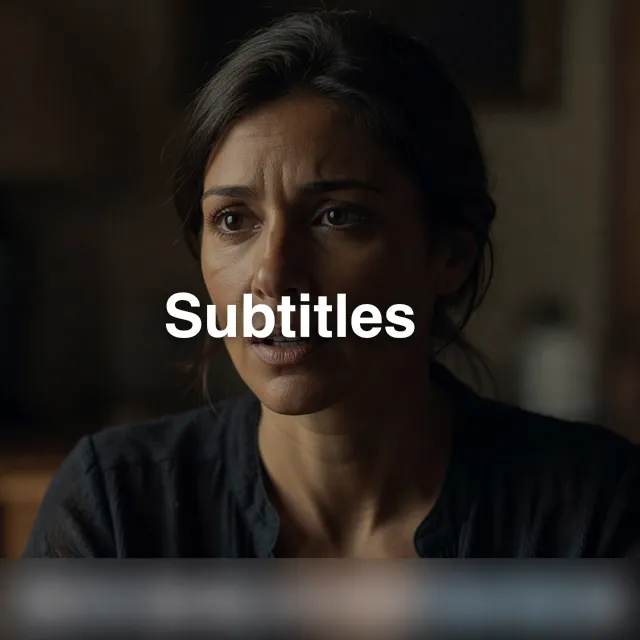
1.Subtitlesby VEED
12 credits / run · Starter planTranscribes the speech and burns styled captions into the video, with 30 caption styles and optional translation.
Best for: Talking-head, tutorial and social clips that need on-screen captions. Modes: Add subtitles.
Try Subtitles- 30 caption styles, each with its own fonts, colors, layout and animation
- Paste SRT text or link an .srt file and transcription is skipped, so you can supply captions you already have
- Can translate the captions into another language (more than 200 options in the menu)
- 12 credits (about $0.60) at the default settings
- The captions are burned into the picture, so they cannot be switched off afterwards; keep your original clip
- Both the spoken-language and translation menus list raw language codes (for example af-ZA) and come preselected, so check them before you run
- There are no transcript-editing controls, so a misheard word means running again with your own SRT text
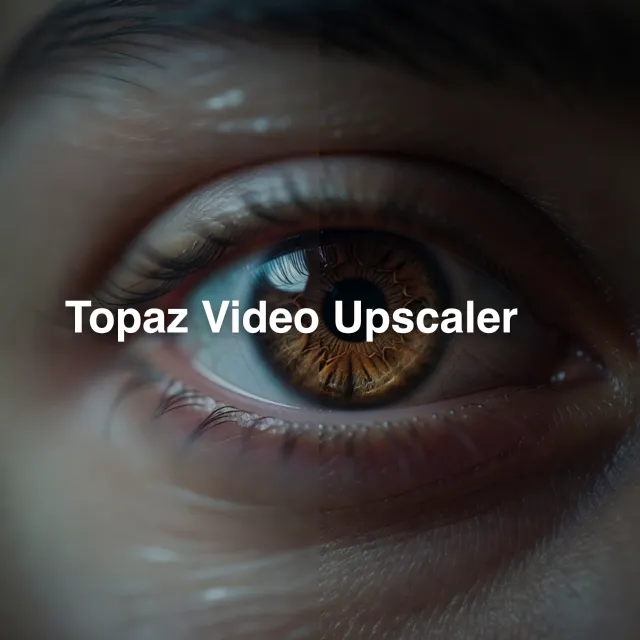
2.Topaz Video Upscalerby Topaz Labs
8 credits / run · Starter planThe most adjustable upscaler here: 21 Topaz models, 1x to 4x scaling and optional frame-rate conversion, and the cheapest of the three upscalers at default settings.
Best for: Sharpening and enlarging soft, noisy or low-resolution footage. Modes: Upscale.
Try Topaz Video Upscaler- 21 Topaz models to choose from, including Proteus, Iris, Dione, Artemis, Gaia, Rhea and Theia
- Scale from 1x to 4x, with sliders for grain, noise, compression, halo and detail recovery
- Can change the frame rate (16 to 60 fps); interpolation only runs when the target differs from the source
- 8 credits (about $0.40) at the default 2x
- The model menu lists 21 names without explanations, so finding the right one can take a few runs
- The slider defaults vary by model, so change one thing at a time to see what it does
- An upscale can sharpen and clean footage but cannot restore detail the source never captured
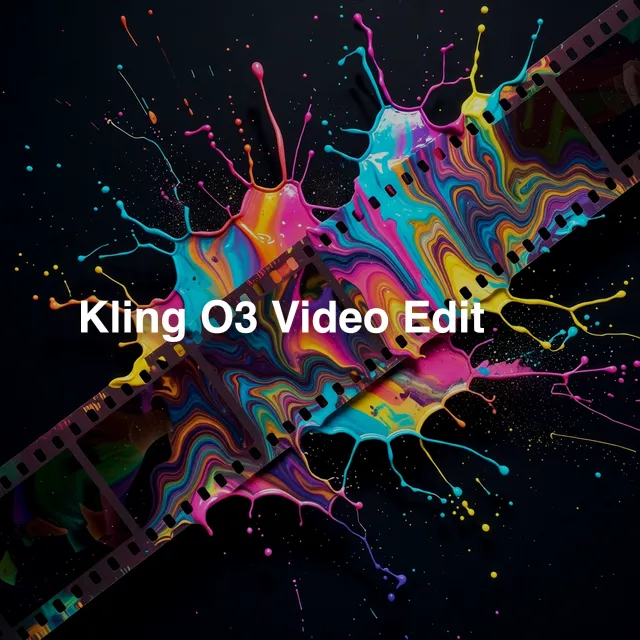
3.Kling O3 Video Editby Kuaishou
168 credits / run · Plus planRestyles or edits a clip from a text prompt while keeping its motion, the closest thing on this list to a generative video editor.
Best for: Turning existing footage into another look, such as anime, claymation or a film look, without re-shooting. Modes: Edit video.
Try Kling O3 Video Edit- Keeps the motion of the original clip, and its sound too unless you turn keep audio off
- Takes up to four reference images for style or appearance (@Image1 to @Image4 in the prompt), and you refer to your clip as @Video1
- Output up to 4K
- Needs the Plus plan ($59/month), and a default run costs 168 credits (about $8.40), roughly a seventh of Plus's 1,200 monthly credits
- The clip must be .mp4 or .mov, 3 to 15 seconds long, 720 to 3840 px and no larger than 200 MB, so longer footage has to be cut down first
- Restyling rewrites the picture, so small details such as faces and on-screen text can change; compare the result with the original before you publish
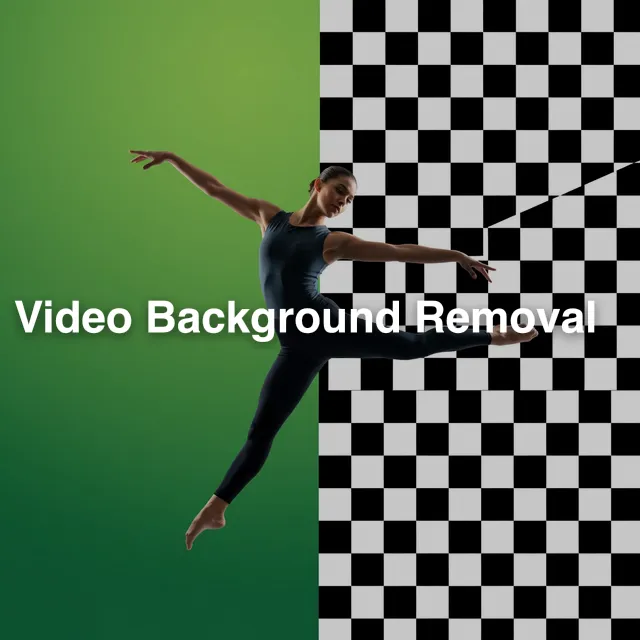
4.Video Background Removalby VEED
9 credits / run · Starter planRemoves the background from a clip and returns a cutout with real transparency, no green screen needed.
Best for: Overlays, product clips and talking heads you want to place on a new background in your own editor. Modes: Remove background.
Try Video Background Removal- Two output options: one VP9 (WebM) file with an alpha channel, or a pair of H.264 videos, one for color and one for alpha
- Refine foreground edges is on by default, and a subject-is-person switch (also on) can be turned off for objects
- 9 credits (about $0.45) at the default settings
- It returns a cutout, not a finished composite, so you still need an editor to place it on a new background
- Transparent WebM and paired H.264 files are not read by every editing app, so check that yours opens the format you choose
- The provider recommends H.264 for better color quality, but that option returns two separate videos you have to recombine
5.Filler Word Removalby HeyGen
24 credits / run · Starter planCuts "um"s, "uh"s and long silences out of talking-head video in a single automatic pass.
Best for: Talking-head recordings, tutorials and interview clips. Modes: Clean up.
Try Filler Word Removal- Handles filler words and long silences in the same run
- Nothing to configure: upload the clip and run it
- The only optional setting is a title, so you cannot choose how aggressively it cuts
- Automatic cuts can land mid-word or leave jumpy edits, so watch the whole result before posting
- 24 credits (about $1.20) per run, twice the price of Subtitles
6.SeedVR Video Upscalerby ByteDance
20 credits / run · Starter planA second upscaler with direct control over the output: aim for 720p, 1080p, 1440p or 2160p, or scale by a factor, and export MP4, WebM, ProRes or GIF.
Best for: Getting a clip to a specific target resolution, or exporting a ProRes file. Modes: Upscale.
Try SeedVR Video Upscaler- Target mode lets you pick 720p, 1080p, 1440p or 2160p instead of guessing a multiplier
- Output as MP4, WebM, ProRes 4444 (.mov) or GIF, with quality from low to maximum
- Priced by target: 9 credits for 720p, 20 for 1080p (the default), 36 for 1440p and 80 for 2160p (about $4)
- 2160p costs roughly nine times the 720p price for the same clip
- Fewer controls over the look than Topaz: a noise scale and a seed, but no model choice
- Set the upscale mode to target if you want a specific output size; the default mode multiplies the source dimensions
7.Kling Motion Controlby Kuaishou
42 credits / run · Starter planTransfers the movement from a reference video onto a character in a photo, keeping the photo's scene.
Best for: Animating a character image with the movement from another clip. Modes: Motion control.
Try Kling Motion Control- The motion comes from your reference clip rather than a text description, and the prompt is optional
- Choose whether the character's orientation follows the image (the default) or the video
- Can keep the reference video's sound, which is on by default
- The reference clip should show a realistic-style character, and the photo works best when the character is clearly visible
- The scene comes from the photo, not from the clip, so the clip's background is not carried across
- 42 credits (about $2.10) at the 15-second reference length Bolly assumes
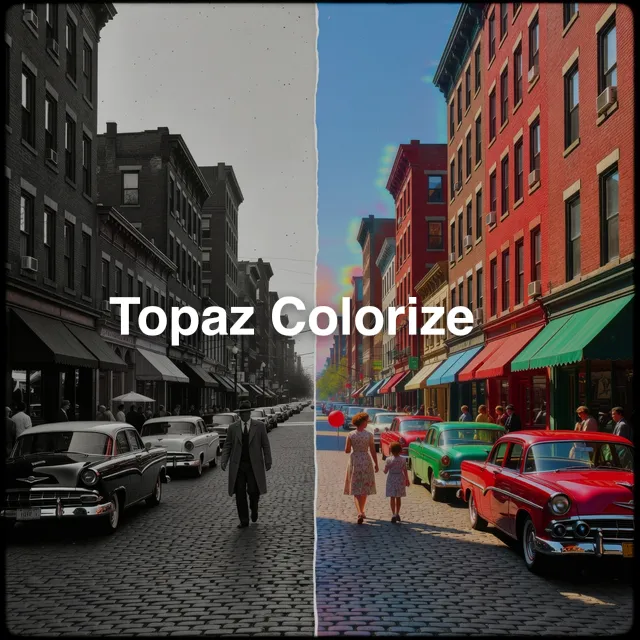
8.Topaz Colorizeby Topaz Labs
4 credits / run · Starter planAdds natural color to black-and-white footage in one step, aiming for consistent color from frame to frame.
Best for: Archival and vintage black-and-white footage. Modes: Colorize.
Try Topaz Colorize- Built to keep the color consistent across frames rather than flickering
- Nothing to configure: upload a black-and-white clip and run it
- 4 credits (about $0.20) at the default settings
- There are no settings, so you cannot steer which colors it picks
- Only makes sense for black-and-white input
9.Merge Audio & Videoby Bolly
1 credits / run · Starter planPuts a new soundtrack or voiceover on a video. The simplest and cheapest tool on the list.
Best for: Adding a generated voiceover or music track to a silent AI clip. Modes: Merge.
Try Merge Audio & Video- 1 credit (about $0.05) per run
- A start-offset setting lets the audio begin part-way through the video
- It attaches your audio as the track; there are no volume, fade, trim or mixing controls
- Needs the Starter plan even though a run costs 1 credit
10.SAM 3 Videoby Meta
8 credits / run · Starter planFinds and tracks the objects you name in a prompt and returns the clip with the masks applied.
Best for: Isolating people or objects as a first step in your own compositing workflow. Modes: Segment.
Try SAM 3 Video- A text prompt names what to track; separate several objects with commas (for example person, cloth)
- Detection threshold from 0.1 to 1 (default 0.5) and up to 128 tracked objects (default 16)
- Output as MP4 or WebM at 8 credits (about $0.40)
- It marks and tracks objects; it does not remove or replace them, so it is a step, not a finished edit
- Bolly's version takes a text prompt only, with no way to point at an object
- A lower detection threshold finds more objects but with less precision
11.Flux Video Upscalerby Black Forest Labs
330 credits / run · Starter planA generative upscaler that targets 1080p, 2K or 4K, with a source-faithful mode and a creative detail-enhancement mode.
Best for: Short clips where you want added detail rather than only a cleaner enlargement. Modes: Upscale.
Try Flux Video Upscaler- A creativity setting: 0 for a source-faithful upscale, 1 (the default) for creative detail enhancement
- An optional prompt guides the detail it adds
- The source aspect ratio is preserved
- The most expensive tool on the list: 316 credits (about $15.80) at the default setting, more than a Starter month's 300 credits; the 1.5x option costs 80 (about $4)
- The input must be an MP4 of at most 20 seconds and 50 MB
- Creative mode adds detail that was not in the original, so it can change the look of faces and textures
Frequently asked questions
Does Bolly have a timeline video editor?
Not a full one. Bolly has no multi-track timeline for arranging or layering several clips. It does have a basic single-clip editor: open a finished video in your Library and choose Edit video to trim it, crop it to 9:16, 1:1, 4:5 or 16:9, add text, attach one audio track and export it as WebM or MP4. Beyond that, Bolly runs single-step AI edits on a clip you upload, such as restyle, upscale, captions and background removal, and returns a processed file that you can finish in whatever editing software you use.
What is the best AI video editor?
It depends on the job, because the tools here are not substitutes. Subtitles is the most broadly useful, since most talking clips can use captions. Topaz Video Upscaler is the cheapest fix for soft or low-resolution footage, and Kling O3 Video Edit is the one that changes how a clip looks. If you need to cut and arrange several clips, you need a timeline editor, which Bolly is not.
Is there a free AI video editor on Bolly?
Not for video. The Free plan (10 credits a day) covers image, audio and tool models but excludes video models, so all eleven tools on this page need Starter ($19/month, 300 credits), or Plus for Kling O3 Video Edit. The one video-related tool that runs on Free is Frame Extractor, which pulls a still frame out of a clip.
How much do these AI video edits cost?
At default settings, for a 10-second clip: Merge Audio & Video 1 credit, Topaz Colorize 4, Topaz Video Upscaler 8, SAM 3 Video 8, Video Background Removal 9, Subtitles 12, SeedVR 20, Filler Word Removal 24, Kling Motion Control 42 (for a 15-second reference), Kling O3 Video Edit 168 and Flux Video Upscaler 316. One credit is about $0.05, so that runs from about $0.05 to about $15.80.
How do I upscale a video with AI?
Upload the clip to one of three upscalers, all on the Starter plan. Topaz Video Upscaler (8 credits) has 21 models and a 1x to 4x factor and is the cheapest to try. SeedVR Video Upscaler (20 credits at 1080p) lets you set a target from 720p to 2160p and export formats such as ProRes. Flux Video Upscaler (316 credits by default) adds creative detail to clips of up to 20 seconds.
How do I add subtitles to a video with AI?
Upload the clip to Subtitles, choose one of the 30 caption styles, check the spoken-language and translation menus, and run it. Bolly transcribes the speech and burns the captions into the video. If you already have captions, paste the SRT text or link an .srt file and transcription is skipped. A run costs 12 credits (about $0.60) at the default settings.
Can AI restyle a video and keep the original motion?
Yes. Kling O3 Video Edit (Plus plan, 168 credits by default) takes a clip and a prompt and keeps the original motion, and the sound unless you switch it off. The clip must be .mp4 or .mov, 3 to 15 seconds long, 720 to 3840 px and up to 200 MB. You can add up to four reference images to steer the style.
What is the difference between an AI video editor and an AI video generator?
A generator creates new footage from a prompt or an image. An editor starts with footage you already have and changes it: restyling, enlarging, captioning or cutting out the background. The tools on this page are editors; the generator roundups linked below cover the other kind.
Can I edit other people's videos or photos?
Only footage and images you own or have permission to use. If a real person appears in something you upload, it should be you or someone who has agreed to it. Bolly's Responsible AI policy covers consent and labeling realistic AI content when you share it.
Keep exploring
- Best AI video generators
- Best AI image to video tools
- Best AI voice generators
- Best AI music generators
- How to make AI videos
- Restyle Video app
- Upscale Video app
- Add Subtitles app
- Responsible AI: consent
- Plans and pricing
- Best AI Image to Video Tools
- Best AI Image Generators
- Best AI Video Generators
- Best AI 3D Model Generators
- Best AI Photo Editors
- Best AI Headshot Generators
- Best AI Music Generators
- Best AI Voice Generators